Welcome to Stuffs4Geek
Your Ultimate Destination to Free and Full Softwares, Movies and Games. Just Everything for Free. And above all that its a Tech Blog. Useful Tutorials, Tips, Tricks and Hacks.
Showing posts with label Tips and Tutorials. Show all posts

Jun 19, 2011

How To Make Your YouTube Videos Load Faster

YouTube is one of the most used site in the world. But if you do not have a nice internet connection then your YouTube experience can be a bad one as it takes time to load videos on YouTube. That is why, many people download YouTube videos too to watch them online. But now, here is an easy solution for all these slow video loading on YouTube.


YouTube Feather is a new feature of YouTube which let the videos load faster on your web browser. This is an opt-in beta for "Feather" support on YouTube. The "Feather" project is intended to serve YouTube video watch pages with the lowest latency possible.


YouTube Feather achieves this by severely limiting the features available to the viewer and making use of advanced web techniques for reducing the total amount of bytes downloaded by the browser. It is a work in progress and may not work for all videos

Click Here To Join YouTube Feather

Jun 17, 2011

Test Your Boot Time


        You know when someone tells you their computer takes 20-minutes to boot up, and you roll your eyes because you know they are just exaggerating. Well, there is a way to find out. All you have to do is install BootRacer on their machine, and then restart it. The application will keep an eye on certain events such as how long it took the user to login and how long it took for their desktop to finish loading, and it will report back.
One of the cool things is that BootRacer actually displays a window in the lower-right corner of the screen after you’ve logged in showing how long it has taken to startup thus far. It will continue incrementing the timer until all the startup apps have finished loading, and will alert you once it has completed.
Here’s a rundown on some of the features pointed out by the developer:
  • Automatically calculates your Windows boot time.
  • BootRacer uses minimum of computer resources.
  • Runs under the non-administrator accounts.
  • BootRacer logs all the results to the history report and to standard event log. You can check events using Windows Event Viewer.
The history report feature may not seem all that useful, but with it you may be able to pinpoint when some sort of change was made to the machine that significantly slowed it down. You might even be able to salvage some time by simply rolling the computer back to a restore point before the slow-down occurred.
BootRacer is free for non-commercial use, and can be helpful when fixing someone’s computer. If you run it before and after the optimizations you’ll actually be able to give them real-world numbers as to how much faster their computer is thanks to your magical tweaks.

>>BootRacer Homepage<< (Windows only; Free for non-commericial use)

Dec 9, 2010

Avoiding HF RS Premium File Sharing Accounts turning FREE/Invalid


Ever wonder why Premiums posted in this site easily get downgraded to Free account or invalid password without someone ever changing its credentials?

Well, thats because its your fault.

RS and HF all has IP Tracer Capability embedded to their site. Everytime that a certain account is logged more than 2 IP(internet Protocol) simultaneously the account is immediate downgraded to FREE ACCOUNT or INVALID PASSWORD which the new password is to be send to the bonafide owner's email.

Hacking Facebook Password Account with Phishing Attack & Fake Page: WARNING New Facebook Phishing Attack


Readers, beware of a new phishing & fake page attack to hack facebook accounts. Have a look at  http://www.faceb0ok.com/, at first glance it looks like a normal facebook page. But just have a look again, its FACEB0OK not FACEBOOK. The first O is "0" (zero).

Oct 4, 2010

Make Windows 7 and Vista Faster


Did you know that by default windows 7 and vista don't use all your Cores. What I mean is they don't use the dual core system that you payed $700 for or the 2G you put into a quad core and most of the time your only using one. Well here is a tutorial to change that!

Aug 15, 2010

Complete Guide to Install fresh Windows XP


Now this is obvious but easily overlooked, make sure you can boot from your CD/DVD Drive. In order to do this you will have to enter BIOS software and change the Boot order. Check the manual that came with the PC or motherboard for information about entering the BIOS. From previous experience it usually tells you as the computer is starting up and says something like press (Delete or F9, they are the favourite although it could be anything!!) to enter Set Up. There are many different types of BIOS this is Phoenix.


You want the order to be CD/DVD, Floppy, and Master HDD. Once in Set Up (BIOS) follow the onscreen instructions and change the Boot order.

Link Checker for Host Links (RS, MU, HF, UG etc.)

FOR MOZILLA FIREFOX

We all use filehosts like Rapidshare ,hotfile, Megaupload e.t.c these days. Most of the data hosted on these file hosts are in various parts. Sometimes, due to illegal activity of the hosted files or due to no download for a long time, these files get automatically deleted from the servers. Thus, it becomes very annoying when you have downloaded most of the files and come to find that one of the file links is either dead or blocked by host due to possible illegal contents in the file(s). That is when link(ONLY FOR MOZZILA FIREFOX BROWSER) on how to automatically let Firefox check the integrity of links of various file hosts while you visit the page with download links....


The links with red cross mark is dead...and links with green is live links


Follow below procedure to install addons:

step-1 :
Download Greasemonkey add-on and install it in your Firefox.


step-2 :
Download and install te below files using greasemonkey
1.Rapidshare Links Checker(checks only rapidshare links)

2
.Universal Link Checker (Rapidshare, Megaupload,Filefactory, etc)

3
.The Cavern Links Checker (checks 25 host links)

4
. AIO Links Checker (checks rapidshare link...chks faster than other addons)


Step-3 :
restart firefox


Meaning of Different Rips (CAM, TS. TC, DVDscr, DVDRip, Retail)


CAM :

If you ever see a film that sometimes the audience suddenly appear in the film, that is the Cam-Quality film. A Cam is a theater rip usually done with a digital video camera. Sometimes they use mini tripod, but a lot of them do this manually so the camera make shake. And sometimes the seating placement isn’t always idle, it might be filmed from an angle. The sound is taken directly from the onboard microphone of the camera, so sometimes you can hear the audiences laughter quite often during the film. Due to these factors the sound and picture quality usually very poor.


TELESYNC (TS) :

Actually it’s similiar with CAM but TS is filmed with different condition it uses an external audio source (most likely an audio jack in the chair for hard of hearing people), but it does not ensure a good audio quality though. And TS is filmed in an empty cinema or from the projection booth with a professional camera, giving a better picture quality.


TELECINE (TC) :

A telecine machine copies the film digitally from the reels. Sound and picture should be very good, but due to the equipment involved and cost telecines are fairly uncommon. Generally the film will be in correct aspect ratio, although 4:3 telecines have existed. Sometimes it shows a visible counter on screen throughout the film.


SCREENER (SCR) :

A pre VHS tape, sent to rental stores, and various other places for promotional use. The main draw back is a “ticker” (a message that scrolls past at the bottom of the screen, with the copyright and anti-copy telephone number). Also, if the tape contains any serial numbers, or any other markings that could lead to the source of the tape, these will have to be blocked, usually with a black mark over the section. This is sometimes only for a few seconds, but unfortunately on some copies this will last for the entire film, and some can be quite big. Depending on the equipment used, screener quality can range from excellent if done from a MASTER copy, to very poor if done on an old VHS recorder thru poor capture equipment on a copied tape. Most screeners are transferred to VCD, but a few attempts at SVCD have occurred, some looking better than others.


DVD-SCREENER (DVDscr) :

Same premise as a screener, but transferred off a DVD. Usually letterbox , but without the extras that a DVD retail would contain. The ticker is not usually in the black bars, and will disrupt the viewing. If the ripper has any skill, a DVDscr should be very good. Usually transferred to SVCD or DivX/XviD.


R5 RETAIL (R5) :

Over the past 6 months the major movie studios have been releasing retail dvds early in Russia. They do this to stop the widespread use of pirated telecines (which were once very common). Lately however there has been very few real telecines, most of the scene telecines you see are actually R5 retails. The main difference between telecines put out by the pirates is that the r5′s are done using pro equipment, professional studios and professional people. The quality of R5 retail is very similar to dvdscr’s, no time is usually spent cleaning up dvdscrs either.


DVDRip :

A copy of the final released DVD. If possible this is released PRE retail (for example, Star Wars episode 2) again, should be excellent quality. DVDrips are released in SVCD and DivX/XviD.


The range of quality we now have is like this.


DVDRIP > R5 Retail > DVDSCR > Telecine > Telesync > PDVD > CAM

Jul 28, 2010

Hot Tips and Tricks to Speed Up Wordpress


Performance is one major factor for any successful website. A website with driven by Wordpress will be more popular than ever, if it is easy to navigate and speedy as could be. Here are some things you should do if you want your WordPress site to have best performance and avoid upcoming problems at high traffic.

1. WPCompressor - Increase loading time up tp 80%

We couldnt believe it! Just by this small plugin, which activates GZIP compression of your website without any changes to your server, you can reduce your site weight to 80%. It uses PHP to activate GZIP instead of .htaccess. wpCompressor automatically compresses the data output and boosts the speed performance of your blog. You can test your speed here.


2. Remove unnecessary Plugins & upgrade current one
Remove all unused plugins wordpress site. Disable them and then physically remove from your web server. Plugins are disabled will affect the speed of a site for WordPress plugin will check whether activated or not. You also must keep up-to-date with the latest version of the plugin you use. Developer would have released a new version because they have modified the code in several ways to make this plugin work better.


3. Minimize PHP and database queries
I also have read great tip on Wpcandy’s simple ways to speed up WordPress. The article makes a lot of sense, cutting down on PHP and database queries.Jadi when the page loads on your site, and your browser must execute PHP query, it adds to the burden of time. If you change the query PHP with static HTML, every time the page is loaded, the browser you only read HTML.


4. Optimize and Repair your Database from myPhpAdmin
Every week or so you should login to your myPhpAdmin and optimize your db. Locate your Wordpress DatabaseTables, check all the tables in the Check Boxes, select the Optimise Tables Option and repair. You would be surprised how well this trick might work, it saved more than 10% of my current database size


5. Use Reliable image hosting service
Try moving the common web images, CSS, JavaScript and other static files to Amazon S3 Storage service and you will notice the average CPU load / memory requirement of the web server will be reduced a lot. Read this step by step guide. Signing up for reseller hosting gives you more power for your own projects. You will have more control of system ressources.


You can also try WP-Offload . This plugin will boost the performance of your blog by seamlessly offloading static content like images, documents and movies. This will greatly reduce bandwidth consumption and the number of HTTP requests issued to your web server. Additional features such as remote image manipulation and thumbnail generation are provided.


6. Install WP Super Cache Plugin
This plugin will generate static html files from your dynamic WordPress blog. After the resulting html files, your webserver will serve that file instead of processing the relatively heavier and more expensive WordPress PHP scripts and would not actually load content from a database at all, so the post will load faster with less stress on your server.


7. PHP Speedy WP
PHP Speedy WP can quickly and easily speed up your WordPress site and increase your blog’s response without too much effort on your part. PHP Speedy WP also allows us to automatically combine all the JS and CSS files into only two files - which in turn helps the opening page of times. CSS Background Images are automatically converted to URI.Dan this data will be useful in reducing the number of HTTP requests even further. And, importantly, is compatible with Internet Explorer, although the data do not support URL

8. Speed up access to your favorite frameworks via the AJAX Libraries API
The AJAX Libraries API is an attempt to make Web applications faster for developers in simple ways by becoming a content distribution network and loading architecture for popular javascript libraries including:
jQuery
prototype
script.aculo.us
MooTools
dojo

You can either link to the source code directly:


Or you can use Google’s API:


By using the google.load() method, your application has high speed, globally available access to a growing list of the most popular, open source and up to date JavaScript libraries.


9. Optimize your images with this great tool
Shrink O’Matic AIR is a great application to easily (batch) resize (shrink) images. This will be able to handle JPGs, GIFs and PNGs. Simply drag and drop images and they will be resized as you wish! Options allow you to choose the output sizes, names and formats.


10. WP CSS
This plugin GZIP and strip whitespace from your CSS file. This plugin allows you to confidently use @ import in the CSS file and not have to worry about what happens at the end user. This can be seen through the style.css file and put all @ import files into it. You also can set the cache expiration time. In addition you can also add CSS files to a specific page or post and put them all into one file.


11. Display page loading time + number of queries
Here is a simple code that can be inserted in your template. This code is useful to know how long it takes to load your page, or how many sql query is executed.

Jul 23, 2010

How to play a Video as your DeskTop Background like a Wallpaper


Are you bored of those static images on your Desktop Background? Do you feel the need to use a Video in its Place? Ok then, I will tell you how you can do it! Just do as I say and you will have a cool video playing as your Desktop wallpaper.
Let me tell you(most of you will already know) that Windows Vista Ultimate has a feature known as DreamScene which allows you to set a Video as a BackGround. But this feature is not present in any other versions of Windows Vista. As most of the people have already shifted to Vista from their old OS, I will give a detailed tutorial on how you can get started with DreamScene.
Download the DreamScene pack for Vista. It is a RAR file. Extract the RAR file in any folder and then follow the steps:
  1. Run “Install.bat” file with Administrator rights (i.e. Right Click on it and Click on: Run as administrator)
  2. Follow the steps in the command prompt
  3. Reboot, or Run “Reload.bat” file with normal (non-Admin) rights (i.e. just Double Click on it)
After you follow these steps Right Click on your Desktop. When the list opens up, you will find an option called “Play DreamScene”. This shows that you have installed this Vista Add-On properly.
Just remember that you can only play .WMV or .MPG files as your video Backgrounds. Now Right Click on the Video file you want to play as your Background. Select “Set as Desktop Background”. Once you do it, you cam see the same Video playing in your Desktop as the Wallpaper.
If you want to Pause this video in the Background, just Right click on the Desktop and select “Pause DreamScene”. You are done now!
Many people who still use XP miss this feature! You can use the XPScene software for Windows XP to use this feature.

Jul 22, 2010

Make Your Computer Talk


This is a visual basic script file that will pop up an msg which requires

1)Open Notepad

2) Copy the below text and paste on notepad...

Quote:
Dim userInput


userInput = InputBox("Write a message for me to say")


Set Sapi = Wscript.CreateObject("SAPI.SpVoice")

Sapi.speak userInput

3) Be Sure To Save As .VBS

4) Now open it and you will see an place to write

5) When you write it and press OK

6) Your computer will tell what you typed

Jul 2, 2010

Top 5 Excellent Tools To Speed Up Your PC to the Maximum

Top 5 Excellent Tools To Speed Up Your PC to the Maximum


Top 5 Excellent Tools To Speed Up your PC to Maximum
You might have come across many junk utilities that claim that they will Speed up your PC. Except a few all others affirmation are not true. You need to look for some tool that really helps to tune your PC as per your needs and Speed Up your PC to the maximum. A good tuning tool is the one which repairs windows problems, frees some hard disk space for you and provides you some extra utilities that makes working with windows a lot more easier. Here are some of the best tools that can really speed up your windows pc to the maximum……..

1) The Best Registry Cleaner (Clean Up the Registry for a Faster and Error Free Windows)

These days we install a lot of software’s on our pc. We uninstall the unnecessary ones often. But remember uninstalling software won’t remove it completely. It leaves a lot of registry entries in the Windows Registry. These unwanted or unused registry entries get piled up in the Windows Registry and it is a major causes for registry errors. What’s more these unused registry entries will really slow the performance of Windows too! So it is very necessary that you need to remove these unused entries to speed up windows and also make it error free.
Wise Registry Cleaner is an excellent freeware utility that will do the job of cleaning up your Windows Registry. It scans the Windows Registry for orphaned or bad Registry keys, and shows you the name and values for each. It additionally lets you adjudge which entries to delete, and which to keep. For additional Safety it can up your Registry before a scan, so that you can restore it, if any problem occurs.
After doing a scan just press the ‘Repair’ button to clean up the unwanted registry entries. You can now forget about the registry errors and windows will not lose its speed because of them. Remember run this utility at least once in a week. There is a professional version of Wise Registry Cleaner which is not free. But the free version has all the features that we need to suit our needs.


Download Wise Registry Cleaner

2)Best Tool to Clean Up the Hard Disk (Clean the Hard Disk the Safest way)

As in the above case installing programs will leave some unwanted files too along with those registry entries. As time passes, these additional junk will eat up you Hard Drive’s space. So you need to do a disk cleanup.
CCleaner is the best tool that will restore your Hard Disk Space to the Maximum. The Striking Feature of this utility is that it is Free, Fast and Robust. CCleaner will clean the temporary internet Files, clipboard, browser history files (Internet Explorer, safari, Firefox, Opera, Google Chrome) and other junk files left in your hard disk.


You can select what you need to be cleaned. If you need some files e.g. Browser cookies, you just only need UN tick the cookies option that’s all. You can also Include or Exclude custom folders along with the default ones to be cleaned. In general CCleaner is a must have free ware utility for windows users.
Download CCleaner

3)The Best Tool to Speed Up Internet Connection

Speeding up your PC includes Speeding Up the internet connection too. There is no use in paying for the ISP (Internet Service Provider) if you don’t get the speed for which the type of connection you pay for. For e.g. what’s the use in paying for a 2 Mbps broadband connection and getting only 200Kbps speed when you test internet speed? Windows will not optimize the settings for your internet connection by default: what ever be the type of connection used. If you can adjust the settings to suit your type of connection you will get the maximum possible speed from your internet connection. So here is a great tool that can optimize and Speed up the Internet to the Maximum.
TCP Optimizer is one such great free tool that will do this tiresome job very easily. The interface of the program Is easy to understand for a standard computer user.
Before going with just run a speed test at www.speedguide.net to test internet speed available.

How to optimize/accelerate the internet using TCP optimizer

  • You only need to move the pointer towards the speed of your connection (it may be 2000 or above for broadband users and 56 for dial up) give it as per your connection.
  • Now if you are not an expert user just select the optimal settings seen at bottom. If you are an expert user you can take the custom option and adjust the TCP/IP values, MTU, Qos, RWIN etc.
  • After this just tick the “Modify all Network Adapters” option.
  • Now click “Apply Changes” and restart your PC for the changes to take effect.
  • There are many other options in TCP Optimizer for Advanced users. The Latency tab will help you to determine how much data packets are lost. After completing these steps you can run a speed test at www.speedguide.net/speedtest.
You might not get the maximum speed at the very first time you configure the program. I am using this program and I have tested it. I am using a BSNL broadband 2 Mbps connection and I have been getting around 250 kbps speed before using TCP optimizer. After I have configured my settings correctly using TCP optimizer I am now getting around 1.7 Mbps+ speed.
I have got this speed after playing with the program for many times. You need to try by adjusting the settings many times to get the maximum speed.
You also need to understand that speed of your internet connection depends on how far away you are from the internet connection office, and the quality of the cable used etc.
 

You can also visit www.home-network-help.com/tcp-optimizer-to-improve-internet-speed.html for step by step instructions for tuning up your internet connection.
Download TCP Optimizer

4) Using the Flash Drive as Ram for an extra Speed Boost

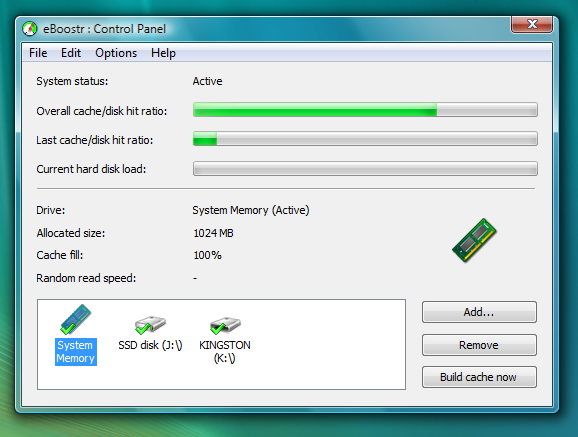
Accessing data from the RAM is blazingly faster than accessing data from your Hard Disk. These days most of us have a USB flash Drive or Pendrive and the amount of RAM installed on most recent computers are 1 GB or more than that since the prices of RAM is very cheap now a days. So we get more value for money, since we get more performance for less money. eBoostr is a great utility that takes advantage of this. It caches the commonly used system files and application files and makes it possible to launch your commonly used programs in the blink of an eye. You may ask doesn’t this is similar to the Ready Boost feature in Windows Vista? The answer is NO. In Vista you can use only the USB flash Drives or pendrives for accelerating the Windows and Applications. But what makes eBoostr far more superior than vista is that, you can use your System RAM too apart from the Pendrives or USB Flash drives. This makes things real fast.
Before starting with, you need to set the RAM or external storage devices (pendrives / flash drives) as the cache memory and set the size as per your need. Since the amount of cache depends on the amount of ram installed on your system, you will be really benefited if have 2 GB or more ram on your PC. eBoostr keeps a note on the frequently accessed programs and keep their files in the cache, so when you launch the programs again it is accessed in a split second!
Unfortunately this program is not a freeware. But you can enjoy it. The free program works only for 4 hours after each system boot.
 
In spite of this small limitation this is a great utility that can speed up windows to a great extend especially for windows users who have a large amount of ram installed on their computers. Most of the daily computer users will be more benefited from this program.
Download eBoostr

5)Best Tool to increase the File Copying Speed in Windows

We know the default file copying utility in Windows Explorer lacks many features. Some times the file copy process get terminated by half the way due to some errors etc. this will be really frustrating. Forget those days of painful file copying process in windows and here is a great utility.
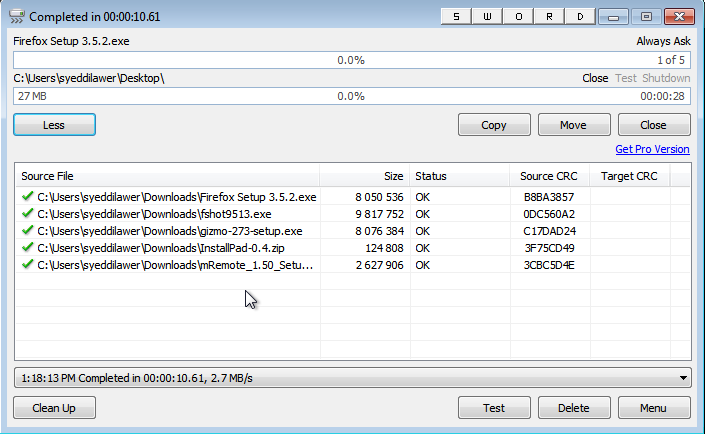
TeraCopy is a great freeware utility that can copy files in windows with ease. What makes TeraCopy different from Windows default file copying utility is that, TeraCopy supports Stopping and Resuming file copying process. It is blazingly fast and also adds copying options (Copy to and Move to) in the right click context menu of windows. If the software encounters some error during the copying process it will skip that corrupted portion and continues its work.
You can also set TeraCopy as the default file copying utility and replace the default windows file copying utility (Under Options in TeraCopy’s main window, just select the option “Use TeraCopy as the default copy handler”) if needed.

Download TeraCopy
All the above mentioned utilities offer great value and will surely help to Speed up our PC.

__________________

How to RUN/Play Latest Games without a Graphics Card


Most of the latest games released to day needs a powerful graphics card in order to run properly. As PC components have become very cheaper most of the computer users today will buy a graphics card together with their new pc. But many people who have bought their PC’s some years back will not be able to invest in for a new graphics card; most probably their mother boards wont support it. So if they need to play the latest games the only choice is to invest in a new mother board and graphics card. The same is my case too. But there is some outstanding news for you guys. Yes you can now play these graphics intensive games without a graphics card! Read it again to get the full impact……
When you try to run graphics demanding games like Farcry etc. you will be met with errors like Pixel Shader 2.0 not supported, graphics card not supported like that. So here comes a software that can use the power of the Central Processing Unit; the CPU for these purposes. It will emulate the CPU to do the work of the graphics card, there by enabling old pc users to play latest games on their pc.

3d analyze is a Graphics Card Emulator that can emulate all the feature of a 3d graphics card like pixel shader 1.1, 1.4, 2.0, bump maps and many other features.
You need not worry when a game stops working on your system, 3D Analyze will come to your rescue. This software is very useful to people whose graphics requirements are higher than the configuration that they have now.

3D analyzer can simulate options like TnL caps,Enable Pixel shader 1.4,etc.
It additionally allows you to simulate your graphics card.


How you can use 3D analyzer to Run/ Play the new Games on your PC


1. Download the latest version of 3D Analyzer from here.

2. Now you need to extract the files to a folder by running the file you have just downloaded. Now Run 3DAnalyze.exe file.


3. Press “SELECT” button, locate and open the main executable program of the game. You need the select the main executable file itself not the shortcut i.e the select the executable file of the game from the directory where it is installed on.

4. Emulating missing hardware features with 3D-Analyze:If your graphics card features won’t support DirectX based favourite game’s minimal system requirements – then look for the corresponding reference on game box or in the game readme.txt file and simulate those settings by “moving” your graphics card into minimal category if necessary. Here are some of the main 3D-Analyze settings to check if you want emulate a DirectX version starting from previous one.


5. The VendorID and DeviceID boxe’s could be useful if the game doesn’t work again and it showa error message saying unsupported Video Card / Graphcs Card.It could emulate both the video cards of that NVidia or AMD Radeon.


6. Filling up these blank fields with values written in group box saying DirectX Device ID’s, it will compel your game to use your video card like a different one.So if you want to your graphic’s card to be of that of Nvidia just change the DeviceID from 0 to 1 thats all.


7. Finally Press the “RUN” button, to start the game; it is not guaranteed that you will get the exact performance that you could get on using a real graphics card!. But, higher success chances are of that from DirectX. Atleast you could play the games which wished to play before on your PC

Yes thats it go ahead and play the games that you was not able to play before. Start Gaming!
__________________

Jul 1, 2010

Create ur OWN Virtual Drive

If want to have your personal folder in My Computer:
1.Go to c drive
2.Create a new folder ( say samp1 )


3. Now go to Command Prompt(Start > Run) and TYPE(without Quotes): "subst z: c:\samp1"


4.Now go to My Computer and check it..........
5.Ur New Personal Drive Created having the same Amount of Space as in C Drive.


To remove the drive:
1.Go to Command Prompt(Start > Run) and TYPE(without Quotes): "subst z: /d"

Its Done.......
Enjoy.......

__________________

Some Helpful Tips For XP Users - Part 1

1. Security: Shortcut or Single-Click to Quickly Lock Down Windows

Locking windows is very essential in office or even in home environments to prevent others from snooping on your potentially sensitive information or that surprise birthday party you have been planning for weeks. We will show you a way to lock your windows with a double-click / single-click or a shortcut. Now you have no excuse to leave your computer unprotected, even for a short break.

1. Create a new shortcut on your desktop using a right mouse click
2. enter rundll32.exeuser32.dll,LockWorkStation in the location field.
3. Name the shortcut with anything.
4. When needed just double click on it and you are done.its locked.
5. If you are lazier , just press Windows+L and that is it

2. How to Remove Hidden Software

Suppose you want to remove Windows Messenger, because its worthless according to you in this age of YM , G-Talks n all. How can you do it? Its not even listed in the Add Remove Program at the Control Panel.

1. Find and edit the text file at c:\windows\inf\sysoc.inf OR
* Go to Windows folder
* Find the Inf folder inside that
* Search for the sysoc.inf file
2. Search for the word hide and remove it. Do NOT remove any other text from the line.
3. Now you can go to the Add or Remove Programs in the Control Panel
4. Select Add/Remove Windows Components and there you can find your unwanted software. Go ahead and Uninstall.

3. How to Remove Shortcut Arrows to Give Desktop Icons a Better Look

Here's how you can remove those shortcut arrows from your desktop icons in Windows XP.

1. Go to registry by clicking on Start menu -> run and type regedit
2. Navigate to HKEY_CLASSES_ROOT -> lnkfile
or
Press CTRL+F and then at the search box type lnkfile and search.
3. Delete the IsShortcut registry value.

You may need to restart Windows XP.

P.S.- Its always good to be on the safer side before modifying registry settings and make backups.
4. How To Delete Annoying Multiple Entries in Boot Screen

Suppose you have multiple copies of Windows XP installed in your PC in different drives or installed Windows XP on top of another operating system like Windows 98 or Windows 2000. Now, though you may have removed some or all of the older versions, still the boot screen continues to show the old operating system entries. Isn't it annoying and confusing to remember and select every time the only right option? Don't worry, here is how you can get rid of the problem forever:

1. Load windows and login if required
2. Go to Start menu, click on Run and then type cmd. This open up the command window.
3. Type this command:
bootcfg /delete /id x
where x is the number of the option you want to delete. Say, for example, you want to delete 2nd boot option then you will type bootcfg /delete /id 2 and so on.
4. Now reboot the machine to check that you have only the correct option(s) available.

Note:

* Please be careful in step 3 and don't delete the correct operating system because that will prevent you from booting.
* Repeat step 3 to delete all unnecessary operating system menus.

5. How to Convert between FAT32 & NTFS in Windows

FAT32 & NTFS, for those its greek, are two popular file systems available in windows. For those who are curious let me give a simple overview of both of them:

NTFS provides:

* advanced security using access control lists
* Provides file & directory compression for storing more data
* Encryption
* Quotas
* Robustness

NTFS is highly recommended for sensitive data. A clean installed of Windows XP installs NTFS by default. However if you are installing Windows XP over other operating system like Windows 98, you may have installed FAT32 as your file system.

The only benefit of FAT32 is that you can simultaneously use FAT32 formatted disks with older operating systems like Windows 95 Service Pack 2 and Windows 98 in a machine with multiple operating systems.

Personally I would always recommend NTFS over FAT32 any day.

So now if you are allured to convert your files to NTFS , is there a way? Yes sir. there is.

1. Open Command Prompt.
2. Click Start, point to All Programs,
3. Point to Accessories
4. Click Command Prompt
5. In the command prompt window, type: convert drive_letter: /fs:ntfs

For example, typing convert D: /fs:ntfs would format drive D: from FAT to NTFS.
__________________

Some Cool Firefox Tricks

Not all Useful but good..
Below are some Cool Firefox Tricks, just copy and paste it in your firefox browser's address bar :

chrome://browser/content/browser.xul
- Opens another Firefox inside a tab in the the existing Firefox window

chrome://browser/content/preferences/preferences.xul
- Opens Options dialog box inside the tab

chrome://browser/content/bookmarks/bookmarksPanel.xul :
- Opens BookMarks Manager inside the tab

chrome://browser/content/history/history-panel.xul
- Opens History Panel inside the tab.

chrome://mozapps/content/extensions/extensions.xul?type=extensions
- Opens Extensions window in the current tab

chrome://browser/content/preferences/cookies.xul
- Opens cookies window inside the tab

chrome://browser/content/preferences/sanitize.xul
- Opens Clear Private Data window inside the current tab

chrome://browser/content/aboutDialog.xul
- Opens About Firefox Dialog box inside the tab

chrome://global/content/alerts/alert.xul
- Dancing Firefox
__________________

Firefox's Tricks and Tweaks Using about:config


The about:config page contains most (if not, all) of Firefox configuration options. It is so far the most effective, and the most powerful way to tweak and enhance your Firefox performance.

Here are some of the popular tweaks.
Accessing your about:config page

In your Firefox, type about:config in the address bar.

You will be shown a warning page. Click the “I’ll be careful, I promise!” button to proceed.

On the main page, you will see a long list of configuration entries. Enter the name of the key you want to update in the “Filter” field. The list will narrow to only the entries that match your keyword as you type.


To modify the value, simply double click on the entry value field and update the entry. That’s all!

Isn’t that simple? Now, let’s get to the tweaking.


1) Adjust the Smart Location Bar’s Number of Suggestions

In Firefox 3, when you start typing in the location bar, a drop-down list of suggestion URLs will be shown. If you want it to show more than 12 suggestions (12 is the default), you can adjust the browser.urlbar.maxRichResults keys and get it to show the number you want.

Config name: browser.urlbar.maxRichResults
Default: 12
Modified value: Set to your desired number of suggestion. If you want to disable it all together, set it to -1


2) Disable the session restore function

Firefox 3 automatically saves your session every 10 secs so that whenever it crashes, it can restore all your tabs. While this is a useful feature, some of you might find it irritating. To disable this function, toggle the value of browser.sessionstore.enabled to False

Config name: browser.sessionstore.enabled
Default: True
Modified value: False if you want to disable the session restore function


3) Adjust the Session Restore Saving Frequency

Same as above, if you decided to keep the session restore feature on, but want to reduce the session saving frequency, change the value of browser.sessionstore.interval so that Firefox will save the session at a longer interval.

Config name: browser.sessionstore.interval
Default: 10000 (in msecs, equivalent to 10secs)
Modified value: Set it to your desired value. 1000 means 1 sec and 60000 means 1 minute.


4) Enable Advanced Color Profile Support

Firefox has this advanced color profile features that display higher image quality. It is not enabled by default as it has a negative effect on the performance of the browser. If you are concern with the image quality rather than the performance, you can activated it via the gfx.color_management.enabled setting

Config name: gfx.color_management.enabled
Default: False
Modified value: True (if you want to activate the color profile support feature)


5) Disable Antivirus Scanning

This is mainly for Windows users. By default, Firefox 3 automatically scan the downloaded file with the default anti-virus application to make sure it is free of virus. If you download a big file, it could take a long time for the whole scanning process to complete. To increase the performance of the browser, you might want to consider disabling the anti-virus scanning via the browser.download.manager.scanWhenDone key.

Config name: browser.download.manager.scanWhenDone
Default: True
Modified value: False (if you want to disable it)


6) Configuring The Scrolling Tabs

When you opened many tabs, Firefox will not keep on reducing the tab width. Instead, it shows a scrolling bar so that the min width (100px) is conserved and you can scroll to find your tabs. If you are those who don’t like the scrolling tab function and prefer Firefox to show all the tabs, regardless how small it is, you can set the value of browser.tabs.tabMinWidth to 0 to disable it. Similarly, if you want Firefox to display more tabs before showing the scrolling button, you can reduce the default value to a lower value, say 75 pixels.

Config name: browser.tabs.tabMinWidth
Default: 100
Modified value: 0 if you want to disable the scrolling functions, other values to set the min width value


7) Show/Disable Close button on Tabs

Some people love to see the Close (the red X) button on every tabs, but some hate it. Whatever is it, you can configure it to your preferences via the browser.tabs.closeButtons setting.

Config name: browser.tabs.closeButtons
Default: 1
Modified values:

* 0 – display a close button on the active tab only
* 1- display close buttons on all tabs
* 2- don’t display any close buttons
* 3- display a single close button at the end of the tab strip


8) Extend Scripts Execution Time

In Firefox 3, a script is only given 10 seconds to respond, after which it will issue a unresponsive script warning. If you are hooked on a slow network connection, you might want to increase the script execution time via dom.max_script_run_time to cut down on the frequency of the no script warning.

Config name: dom.max_script_run_time
Default:10 (in secs)
Modified value: 20, or any values greater than 10


9) Handling javascript Popups

When you come across a site that executes a javascript open new window function, and if the popup window is without all the usual window features, i.e. back/forward/reload buttons, status bar etc, Firefox will automatically treat it as a popup and will not open it as a new tab. However, if you find this to be a nuisance and wanted to open all new windows in a new tabs, you can specify it via the browser.link.open_newwindow.restriction setting.

Config name: browser.link.open_newwindow.restriction
Default: 2 – Open all javascript windows the same way as you have Firefox handle new windows unless the javascript call
specifies how to display the window
Modified values:

* 0 – open all links as how you have Firefox handle new windows
* 1 – do not open any new windows
* 2- open all links as how you have Firefox handle new windows unless the javascript specify how to display the window


10) Enable Spell Checking In All Text Fields

The default spell checking function only checks for multi-line text boxes. You can get it to spell-check for single line text box as well.

Config name: layout.spellcheckDefault
Default: 1 (spell checker for multi-lines text boxes only)
Modified values:

* 0 – disable the spell checker
* 2 – enable the spell checker for all text boxes


11) Open Search Box Results In New Tab

When you search using the search box at the top right hand corner of the browser, it will display the search results in the current tab. If you don’t want the search to interfere with your current tab, you can tweak the browser.search.openintab to make it open in a new tab.

Config Name: browser.search.openintab
Default: False
Modified value: True (open search box results in new tab)


12) Lower The Physical Memory Used When Minimized

This tweak is mainly for Windows users. When you minimize Firefox, it will send Firefox to your virtual memory and free up your physical memory for other programs to use. Firefox will reduce its physical memory usage, when minimized, to approximately 10MB (give or take some) and when you maximize Firefox it will take back the memory that it needs.

The preference name does not exist and needs to be created.

Right click on the background and select New->Boolean.

Enter the name when prompted: config.trim_on_minimize
Enter the values: True


13) Speed up your Firefox

Several tweaks required for this

Config name: network.http.pipelining
Default: False
Modified value: True

Config name: network.http.proxy.pipelining
Default: False
Modified value: True

Config name: network.http.pipelining.maxrequests
Default: 4
Modified value: any value higher than 4, but not more than 8

Config name: network.http.max-connections
Default: 30
Modified value: 96

Config name: network.http.max-connections-per-server
Default: 15
Modified value: 32


14) Increase/Decrease the Amount of Disk Cache

When a page is loaded, Firefox will cache it into the hard disk so that it doesn’t need to be download again for redisplaying. The bigger the storage size you cater for Firefox, the more pages it can cache.

Before you increase the disk cache size, make sure that browser.cache.disk.enabled browser.cache.disk.enable is set to True.

Config name: browser.cache.disk.capacity
Default: 50000 (in KB)
Modified value:

* 0 – disable disk caching
* any value lower than 50000 reduces the disk cache
* any value higher than 50000 increases the disk cache.


15) Select all text when click on the URL bar

In Windows and Mac, Firefox highlights all text when you click on the URL bar. In Linux, it does not select all the text. Instead, it places the cursor at the insertion point. Regardless which platform you are using, you can now tweak it to either select all or place cursor at insertion point.

Config name: browser.urlbar.clickSelectsAll
Modified value:

* False – place cursor at insertion point
* True – select all text on click


16) Autofill Address in URL Bar

Other than the smart location feature, you can also get your URL bar to autofill the address as you type the URL.

Config name: browser.urlbar.autofill
Default: False
Modified value: True (Have Firefox autofill the address as you type in the URL bar)


17) Same Zoom Level For Every Site

Firefox remembers your zoom preference for each site and set it to your preferences whenever you load the page. If you want the zoom level to be consistent from site to site, you can toggle the value of browser.zoom.siteSpecific from True to False.

Config name: browser.zoom.siteSpecific
Default: True
Modified value: False (enable same zoom preferences for every sites)


18) Setting your zoom limit

If you find that the max/min zoom level is still not sufficient for your viewing, you can change the zoom limit to suit your viewing habits.

Config name: zoom.maxPercent
Default: 300 (percent)
Modified value: any value higher than 300

Config name: zoom.minPercent
Default: 30 (percent)
value: any value


19) Configure Your Backspace Button

In Firefox, you can set your backspace to better use by getting it to either go back to the previous page or act as page up function.

Config name: browser.backspace_action
Default: 2 (does nothing)
Modified value:

* 0 – go back previous page
* 1- page up


20) Increase Offline Cache

If you do not have access to Internet most of the time, you might want to increase the offline cache so that you can continue to work offline. By default, Firefox 3 caches 500MB of data from supported offline Web apps. You can change that value to whatever amount of your choice.

Config name: browser.cache.offline.capacity
Default: 512000 (in KB)
Modified value: any value higher than 512000 will increase the cache value


21) Auto Export Firefox 3 bookmarks to bookmarks.html

Unlike the previous version, Firefox 3 backup the bookmarks file in places.sqlite rather than the usual bookmarks.html. Since bookmarks.html allows us to export and sync our bookmarks with other browser, it will be very useful if Firefox 3 can backup the bookmark to the bookmarks.html as well.

Config name: browser.bookmarks.autoExportHTML
Default: False
Modified value: True (auto export bookmarks file to bookmarks.html)


22) Disable Extension Compatibility Checks

This is useful if you want to use an extension that is not supported by your version of Firefox badly. It is not recommended, but you can still do it at your own risk.

Right click and select New->Boolean. Enter extensions.checkCompatibility in the field. Enter False in the next field.

Right click again and select New->Boolean. Enter extensions.checkUpdateSecurity into the field and enter False into the next field.


23) Disable Delay Time When Installing Add-on

Everytime you wanted to install a Firefox add-on, you will have to wait for several secs before the actual installation starts. If you are tired of waiting, you can turn the function security.dialog_enable_delay off so that the installation will start immediately upon clicking.

Config name: security.dialog_enable_delay
Default: 2000 (in msec)
Modified value:

* 0 – start installation immediately
* any other value (in msec)


24) View Source in Your Favorite Editor

This is very useful for developers who are always using the ‘view source‘ function. This tweak allows you to view the source code in an external editor.

There are two configuration need to be made:
Config name: view_source.editor.external
Default: False
Modified value: True ( enable view source using external text editor)

Config name: view_source.editor.path
Default: blank
Modified value: insert the file path to your editor here.


25) Increasing ‘Save Link As‘ timeout value

When you right click and select the ‘Save Link As…‘, the browser will request the content disposition header from the URL so as to determine the filename. If the URL did not deliver the header within 1 sec, Firefox will issue a timeout value. This could happen very frequently in a slow network connection environment. To prevent this issue from happening frequently, you can increase the timeout value so as to reduce the possibility of a timeout.

Config name: Browser.download.saveLinkAsFilenameTimeout
Default: 1000 (1 sec)
Modified value: any value higher than 1000 (value is in msec)


26) Animate Fullscreen Toolbar Collapse mode

In Firefox’s fullscreen mode, toolbars and the tab strip are hidden at the top of the screen and only shown on mouseover. To draw attention to this, there is an animation of the toolbar sliding upwards and off-screen when fullscreen mode is toggled on. For performance issue, the animation of the collapse of the toolbar only appear for the first time. For some reason that you may love/hate the animation, you can adjust Browser.fullscreen.animateUp to switch it on/off for every collapse.

Config name: Browser.fullscreen.animateUp
Default: 1 (animate the toolbar collapse only the first time)
Modified value:

* 0 -disable the animation
* 2- enable the animation for every collapse


27) Autohide Toolbar in Fullscreen mode

In fullscreen mode, the toolbar is set to autohide and appear upon mouseover. If you have a need to view the toolbar at all time, you can toggle the value of browser.fullscreen.autohide to False to always show the toolbar.

Config name: browser.fullscreen.autohide
Default: True (always autohide)
Modified value: False (always show the toolbar)


28) Increase Add-On search result

If you go to Tools->Add-ons->Get Add-ons and perform a search there, Firefox will only fetch and display 5 matching results. If you want Firefox to show more than 5 results (say 10), you can adjust extensions.getAddons.maxResults to get it to display more results.

Config name: extensions.getAddons.maxResults
Default: 5
Modified value: any value more than 5

This list of about:config is definitely not the complete list. If you have any tricks not listed here, please add it in the comment.

Many of above about:config hacks are available in Older Firefox Version, at the end if some thing goes wrong then feel free to restore your about:config to older setting.
__________________

ReActivate Windows-Xp after fresh Install

Is your Computer full of Viruses or Spyware? Do you need to get back to work urgently without much trouble? You have no other option than formatting you PC and Reactivating the Operating System(Windows) again. But You can surely save your Reactivation time for Windows if you are using Windows Xp.

It is possible to Reactivate Windows Xp by just tweaking a single file from the System32 windows folder. When you install Windows on your computer for the First time, XP creates a file called “WPA.DBL” and saves it in the C:\WINDOWS\SYSTEM32 directory.

Now before Formatting your Computer just copy this file in any external storage device like a USB Flash Drive or an External hard drive. Then Format the Computer and reinstall Windows. While reinstalling Windows, you’ll reach the point where you have to activate. Decline the activation and complete the installation.

Now Restart your computer in Safe Mode by pressing F8 on Startup to get into the Advanced Boot Options menu.

Go to C:\Windows\System32 and you should see a file called WPA.DBL already there. Simply rename it to something else like WPA.BACKUP(or anything else) and then copy your backup version of WPA.DBL to the current location.

Now restart your Computer and your Windows will appear working fine. You have successfully activated your Windows Xp without much trouble. Remember that this will only work if you use the WPA.DBL file on the same computer that it was originally activated on. If you install XP on a different machine and try to copy the WPA.DBL file there, it won’t activate. Basically, XP looks at the hardware of the computer to create a unique profile for just that one computer.

10 widgets for Opera users to sing about

When Opera released its widget software development kit last year, there was little doubt that some cool applications would make their way to the company's browser. More than a year later, they indeed have.

I've been sifting through hundreds of Opera widgets that all work with the Opera browser for your Mac, Linux box, or PC. I've found 10 that stand out from the others. Opera users should definitely try these out.


10 Opera widgets


>Brainkrieg: Brainkrieg is a fun game that does its best to "exercise your brain." The tool gives you a variety of games to play that test your memory and help you think. The point of the game is to decrease your brain age. It's somewhat similar to Brain Age on the Nintendo DS, but the latter is a bit more sophisticated.


Brainkrieg helps you improve your memory.
Code:
http://widgets.opera.com/widget/11391/

>Dotoo: Dotoo is a to-do list widget in your Opera browser. You can create a host of to-do lists and access them all from within the widget. Adding tasks is as simple as pressing the "+" button under your list and inputting your task. It's not a sophisticated widget, so you won't be able to track your progress. But if you want to quickly add a few tasks, you should be happy with what you find.

Dotoo lets you create a quick to-do list.
Code:
http://widgets.opera.com/widget/4632/

>Facebook Notifier: Facebook Notifier gives you a listing of all your friends' recent status updates. You can't update your profile in the application, but you can easily access your profile with the links in the widget. It might not be the most useful app, but if you want to see what your friends are up to while you're browsing outside Facebook, it's a fine choice.

Facebook Notifier keeps you up-to-date.
Code:
http://widgets.opera.com/widget/7812/

>Google ToolBar: The Google ToolBar should be one of the first widgets you add to your Opera browser. The tool gives you quick access to (and search results in) Google search, Gmail, Reader, Finance, News, and much more. Almost every Google app currently available is featured on the toolbar. And since it's a widget, you can drag it around your browser to put it in the perfect spot while you're working.


Google ToolBar is a must-have.
Code:
http://widgets.opera.com/widget/4282

>iTunes Widget: Opera's iTunes Widget allows you to see the top songs, featured tracks, new releases, and top albums. You can also choose songs by genre. When you find a song you might want to buy, you can click on it. That will immediately open a Web page redirecting you to the iTunes Store, where you can view the song's listing and buy it.


Buy your favorite songs with the iTunes Widget.
Code:
http://widgets.opera.com/widget/8432

>Lyrics Now: Lyrics Now is a useful widget that provides you with song lyrics in a matter of seconds. Simply input the name of the song and its artist, and Lyrics Now will do the rest. It displays the album cover and the lyrics. You don't need to click the arrows in the sidebar to scroll through the lyrics. Instead, you can hover your mouse over them to get the job done. It's a simple addition, but one that makes sense; who wants to hear a clicking mouse while you're listening to a song?


Lyrics Now helps you quickly find your favorite song lyrics.
Code:
http://widgets.opera.com/widget/7046

>Pandora: If you're a fan of music, you'll love the Pandora Opera Widget. Once you download it and input your Pandora credentials, the widget displays all your stations in the familiar Pandora interface. You can listen to songs, tell the service which tracks you like, and check out other users' stations. It's a full-featured Pandora widget that works just as well as its site.


Pandora's widget is just like Pandora.com
Code:
http://widgets.opera.com/widget/3765/

>Panic Button: Since it's Friday, some of us might be surfing the Web instead of working. That's where the Panic Button comes in. After you install it on Opera, you can place it on your screen while you surf the Web. Whenever you hear the boss coming, simply press the Panic Button, and it will open a new tab automatically. You can pick which site that tab directs you to. In the process, the Panic Button is hidden behind your active windows. It's a must-have if you don't want to get caught at work.

Hit the Panic Button when the boss is around.
Code:
http://widgets.opera.com/widget/5370/

>Twitter Opera: The Twitter Opera widget is a lightweight application that allows you to update your status, see what others are saying, and search Twitter. It's like having the full Twitter experience in a simple widget. I posted updates from the app, and like the site, it updated my stream immediately. I was really impressed by Twitter Opera.


Twitter Opera gives you Twitter in a widget.
Code:
http://widgets.opera.com/widget/7206/

>Wikipedia: The Wikipedia widget is one of the most useful tools in the entire Opera widget listing. It's a simple tool--it only has a search box--but it quickly finds articles on Wikipedia that are relevant to your query. As you're typing, it even displays suggestions to help you in your search. When you finally query the widget, the Wikipedia article is displayed in a new tab. It's a great app.


Wikipedia in a widget is just as useful.
Code:
http://widgets.opera.com/widget/8461/

----------------------------------------------------------------------------------------
My Top 3

1. Google ToolBar: The power of Google in a lightweight package.

2. Pandora: Listen to tracks while you work.

3. Twitter Opera: It's Twitter in a little widget. It doesn't get much better than that.
Related Posts with Thumbnails