Welcome to Stuffs4Geek
Your Ultimate Destination to Free and Full Softwares, Movies and Games. Just Everything for Free. And above all that its a Tech Blog. Useful Tutorials, Tips, Tricks and Hacks.
Showing posts with label Optimize Your Firefox. Show all posts

Aug 18, 2010

5 Must-Have Firefox Extensions For Bloggers


Do you own a website or blog? Does your job involve search engine optimization of any sort? If you answered yes, then Firefox should be your default internet browser. I say this because of Firefox’s amazing array of add-ons to make life easier for bloggers and webmasters.
If you need some convincing, then read on my gathered list of 5 add-ons which will greatly help you do your job once you switch over to Firefox. If Firefox is already your default browser of choice, then just read each entry carefully and see how each add-on can enhance Firefox for your web tasks.
You are welcome if you want to share more must have firefox extensions that our readers/viewers may like.


Top 10 Must Try Firefox Add-Ons


You can enhance your Firefox with the best add-ons which adds features not available with Firefox alone. All of these add-ons can be downloaded directly from addons.mozilla.org

Click Read More to get the Full List of Must have Add-Ons for FireFox..

Aug 15, 2010

Link Checker for Host Links (RS, MU, HF, UG etc.)

FOR MOZILLA FIREFOX

We all use filehosts like Rapidshare ,hotfile, Megaupload e.t.c these days. Most of the data hosted on these file hosts are in various parts. Sometimes, due to illegal activity of the hosted files or due to no download for a long time, these files get automatically deleted from the servers. Thus, it becomes very annoying when you have downloaded most of the files and come to find that one of the file links is either dead or blocked by host due to possible illegal contents in the file(s). That is when link(ONLY FOR MOZZILA FIREFOX BROWSER) on how to automatically let Firefox check the integrity of links of various file hosts while you visit the page with download links....


The links with red cross mark is dead...and links with green is live links


Follow below procedure to install addons:

step-1 :
Download Greasemonkey add-on and install it in your Firefox.


step-2 :
Download and install te below files using greasemonkey
1.Rapidshare Links Checker(checks only rapidshare links)

2
.Universal Link Checker (Rapidshare, Megaupload,Filefactory, etc)

3
.The Cavern Links Checker (checks 25 host links)

4
. AIO Links Checker (checks rapidshare link...chks faster than other addons)


Step-3 :
restart firefox


Jul 30, 2010

WHOA!! Awesome trick in Firefox like Chrome!!!

This is a new feature of Firefox, which is not enabled by default. If you saw it, then it's enabled and is accessible by clicking the small button with four white boxes on the far right side of the tab bar.

To enable it, open a new tab and enter about:config in the address bar and press enter.

In the search field, enter browser.allTabs.previews. Double click the resulting setting to turn it on (true). Restart Firefox.


Jul 21, 2010

3 Amazing Firefox Hacks


What good is a browser unless you can tweak it, hack it and bend it to your will? No good at all. The more you can hack it, the better it is. And that means that Firefox must be a great browser as when ever you feel that you know everything about it you come across a bunch of hidden (and some not-so-secret) tips and tricks available that will crank Firefox up and pimp your browser. Make it faster, cooler, more efficient. So today I have come up with 3 amazing firefox tricks you might not be aware of.

1. Save Session For All Tabs Opened In Multiple Firefox Windows

If you are an ardent user of Firefox then you may be aware that when more than one firefox windows are opened up, in that case when you close a firefox window, it does ask me the option to save the session and exit, rather it ask to close all the tabs in that firefox window, but it wont save the tabs in other windows. So this way you could not save the session for multiple tabs opened in multiple firefox windows.
In such a case, there is only one option left to save the session for all the tabs opened in separate firefox windows by terminating firefox through task manager, here is how you do it.
Press Ctrl+Shift+Esc to quickly launch task manager, click the process tab and locate firefox.exe and right click selecting the exe and click End Process Tree.
Next time when you will open firefox it will open all the tabs in all the windows that were previously open.

2. Open & Log In to Multiple Accounts Gmail, Facebook, or Twitter Accounts In FireFox

Firefox extension CookiePie manages Firefox’s cookies—small bits of text stored on your computer that tell a site you’re logged in, for example—in such a way that you can log into the same site multiple times.
How to use it?
Just follow the steps given below:
  • Install CookiePie Firefox Extension.
  • Create a new tab or use an existing one.
  • Open the context menu of the tab (i.e: Press the right mouse button over the tab) and select “Toggle On/Off CookiePie”.
  • A cookiepie icon will appear over the tab.
  • Go to a site (e.g.: http://www.gmail.com) and login into your account.
  • Create another tab.
  • Enable CookiePie on that tab too.
  • Log in with another account on the same site.

3. Bypass Download Waiting Time On Rapidshare, Megaupload, zShare, Mediafire etc

SkipScreen is a really useful firefox  addon for lot of users who download  various types of files from the popular file and media sharing sites like Rapidshare, Megaupload, zShare, Mediafire, and more.
Most of these file sharing web sites have a annoying waiting time limit before a free user can start downloading the requested file. So, SkipScreen can be really useful in saving your time wasted seeing the download waiting time as it removes the screen of download waiting time from these media sharing sites.
SkipScreen monitors the pages where you see the download time and will get the content you want before the download waiting time completes.

Jul 19, 2010

Useful Tweaks & Ways To Speed Up Firefox 4

Firefox 4 is on the way and the beta version has been released for the testing purpose. The new version 4 of the most popular browser is stunning in looks and performance. Here are some tweaks and ways which can be used to Speed Up Firefox 4.

#1) Performance tweaks for Firefox 4 to increase the browsing speed

Type “about:config” (without quotes) in the address bar and proceed by pressing the I’ll be careful, I promise button. Now in the filter field type in the following values one by one and set its value accordingly. For eg, type network.http.pipelining, you will see the corresponding value appearing below, double clicking it will set the value to true or false and if its some thing which has a value to be set, a popup window appears where you could enter the value for the field.
network.http.pipelining => true
network.http.proxy.pipelining => true
network.http.pipelining.maxrequests => 12
content.notify.backoffcount => 5
plugin.expose_full_path => true
ui.submenuDelay => 0
network.dns.disableIPv6 => true
javascript.options.jit.chrome => true
javascript.options.jit.content => true
If any of the above value doesn’t appear, then follow the steps below.
For a setting with true or false value. For eg, if you don’t see the value being displayed below while typing content.notify.backoffcount on the filter field just right click on an empty space and select Boolean from New. Type content.notify.ontimer in the box and set its value to true.
creating custom tweaks value in firefox 4
The same is applicable if you are setting a integer value, except that you need to select Integer from the right click menu.

#2) Speeding Up Firefox 4 by cleaning up the SQL Data base


Firefox uses a my sql database where various values and entries are being stored during its usage. With time this get accumulated like unwanted registry entries left behind after an uninstallation in windows. So its necessary to clean the firefox 4 database once in a while.
  • For this, Press Ctrl + Shift + J in your firefox browser. You would see the error console window being displayed.
  • Click inside the code field and paste the following code and press on Evaluate.
    Components.classes["@mozilla.org/browser/nav-history-service;1"].getService(Components.interfaces.nsPIPlacesDatabase).DBConnection.executeSimpleSQL(“VACUUM”);
    firefox 4 error console cleaning mysql query
  • Firefox will now freeze for some time and will be back to normal.

#3) Keyboard Shortcuts for Firefox 4

In one of my earlier posts I have created a list of 20 useful keyboard Shortcut for browsers to enhance your browsing experience and speed up your work. Check these out.
Ctrl + T (Open A New Tab) – Instead of right clicking and selecting or clicking the New Tab option, using the Ctrl + T keyboard shortcut will help you open a new tab in the current window.
Ctrl + W (Close the Current Tab) – Like Opening a New Tab in your browser, this will help you to Close the Current Tab you are working with.
Ctrl + N (Open A New Window) – This will help you to open up a new window in your browser.
Ctrl + D (Bookmark Current Website) – Bookmark your useful websites using this easy shortcut.
F5 ((Refresh)) – Refresh the Current Open Tab.
Ctrl + F5 (Hard Refresh) – Clear the cache of the current stored webpage and stores a fresh new copy. Thats what a Hard Refresh is for. Helpful when just posted comments don’t appear etc.
Ctrl + H (Show History) – You know it! Show the history of previously visited webpages.
Ctrl + L or Alt + D or F6(Not For Opera) (Highlight Search Bar) – No need to move your mouse and click on the address bar to type a websites address in your browser again. Just use this quick shortcut.
Ctrl + E (Highlight Search Bar) – This will move the cursor to the search bar. Save the time you move your mouse over to the search bar!
Ctrl + (+/-) (Zoom In/Out) – Zoom in or Zoom out the current pages.
Ctrl + F (Find) – Instantly find a particular text on the current page.
Ctrl + C and Ctrl + V (Copy/Paste) – I bet you already know this!
Home / End (Top / Bottom) – These will help you to go to the Top or Bottom of a Page in a Jiffy.
CTRL + Click (Not for Opera) (Open Link in Background) – Open a link in a Background Tab without interfering your work.
CTRL + U (Source) – View the source code of the current website.
CTRL + left Click (Save Images (Opera Only)) – In fact this is a really a very handy shortcut that will save time. Why need to right click on an image and select the Save Image… option? Just Hold down the Ctrl key and click the left mouse button.
CTRL + Shift + T or (CTRL + Z also works in Opera) (Restore Tab) – This will help you to quickly reopen or recover previously closed Tab easily.

#4) Addons to browse faster on Firefox 4

Adblock Plus extension will block the advertisements you see on various websites and there by making things easier to read and enhancing your browser experience.
adblock plus for firefox 4 - Download

Jul 1, 2010

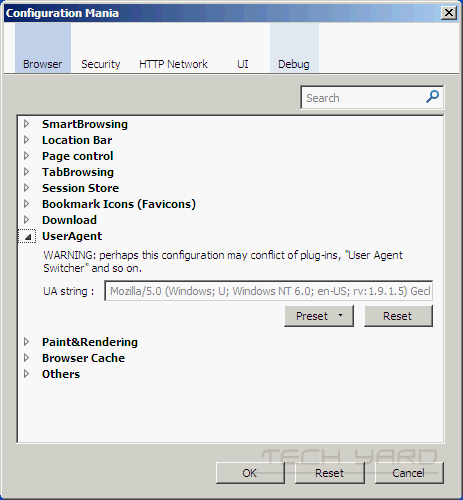
Configuration Mania Firefox Addon Makes Editing Firefox Preferences Easier

 Firefox hidden settings/preferences can be changed/edited using the about:config, But it’s difficult for beginners to change as the interface is a bit confusing and suites a seasoned user.

Configuration Mania is a config mania prefs2 Configuration Mania Firefox Addon Makes 
Editing Firefox Preferences Easierfirefox addon that allows users to easily configure various firefox hidden preferences with a more intuitive interface for the about:config.This addon gives a good user interface to customize and control various aspects of your browser that are usually hidden away and difficult to remember.
The Advanced Settings can be be accessed from “Tool -> Options -> “Configuration Mania“… to open setting dialog.
Preference settings are put under 5 Tabs, Browser, Security, HTTP Network, UI and Debug.This addon also doubles up like other addons like User Agent Switcher, because the a fake “User Agent” can be set from the “User Agent” option under the Browser Tab.
All the settings can be reverted to defaults, by clicking the “Reset” button.It works on Firefox: 3.0 – 3.6.*

Download Configuaration Mania Firefox Addon
__________________

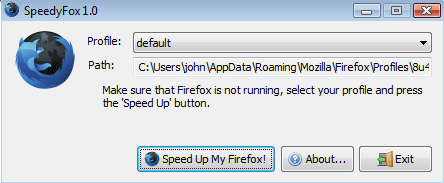
Make Firefox Faster and Speedup Firefox Startup Time Using SpeedyFox

Have you noticed your Firefox Browser slow down after few days of use, that could be due to the fragmentation of the profile database.Speedyfox helps you fix this issue in firefox in a single mouse click.
It can also

  • Boost Firefox startup in up to 3 times!

  • Speed-up browsing history

  • Quicker operation with cookies

  • speedyfox2 thumb Make Firefox Faster and Speedup Firefox Startup 
Time Using SpeedyFox
    How To Use :
    • Launch the application,
    • Select the profile and it shows the path to the profile [verfify the profile path] and
    • Click “SpeedUp My Firefox”.
    There are 2 versions of SpeedyFox, Installer[1.5 MB] and Portable [1MB].
    Download SpeedyFox (Installer) or (Portable).

    __________________
    Related Posts with Thumbnails